Why the Google Ads Google Tag Is the Foundation of Your Ad Tracking
The Google Ads Google tag is the piece of code that connects your website to your Google Ads account — so you can see exactly which clicks turn into calls, leads, and sales.
Here’s a quick breakdown of what it does:
- Tracks conversions — measures actions like purchases, form fills, and phone calls after someone clicks your ad
- Enables remarketing — adds visitors to audience lists so you can show them ads again later
- Places first-party cookies — stores a unique identifier on your domain for more accurate measurement
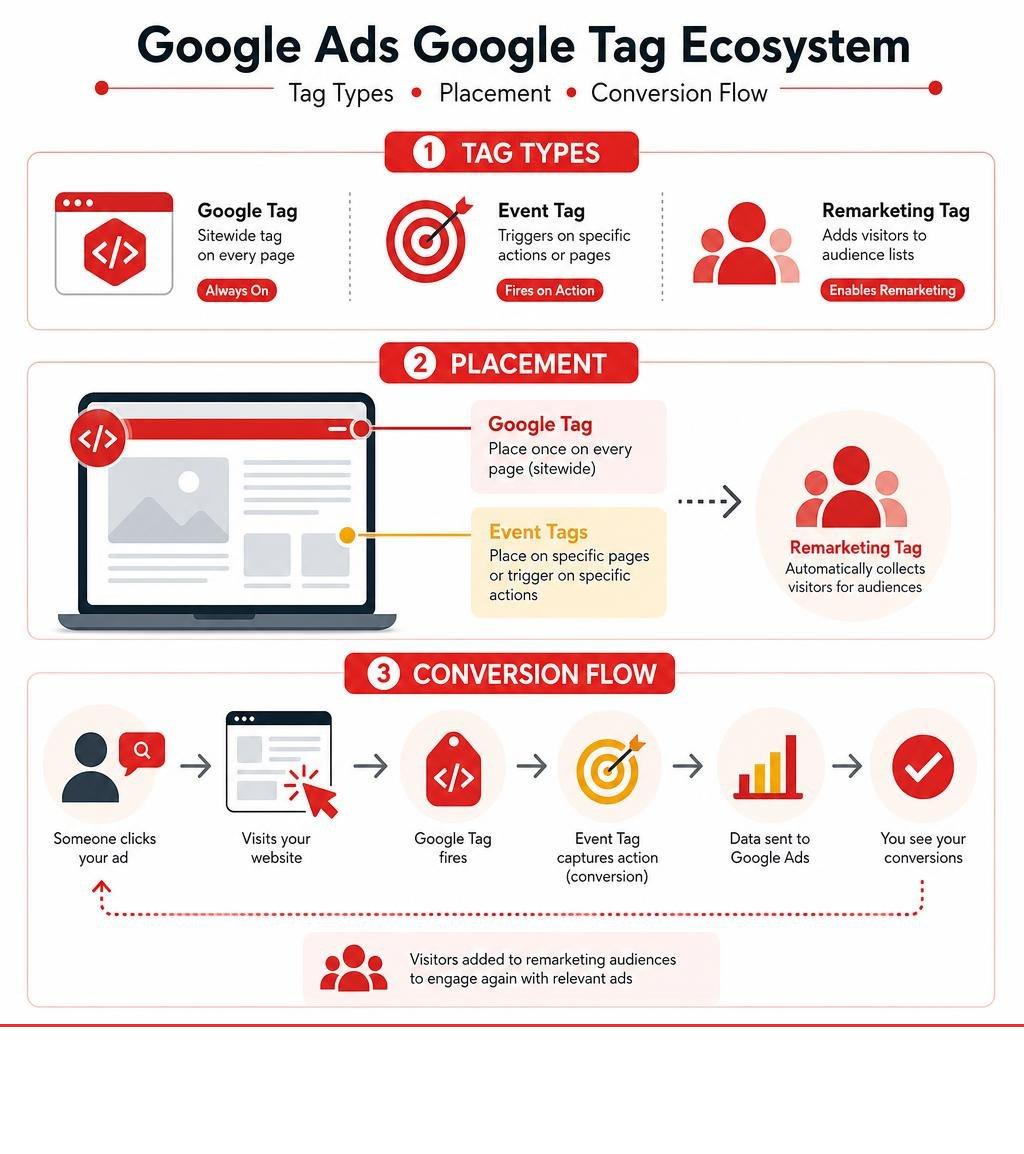
- Works sitewide — one tag goes on every page of your site, while event snippets fire only on specific pages
- Integrates with Google Analytics — if you already have a Google Analytics tag, you can reuse it for Google Ads without starting over
In short: no Google tag = no reliable conversion data = flying blind with your ad budget.
The tag is the single most important technical step before running any Google Ads campaign. Get it wrong and your data is incomplete. Get it right and every dollar you spend becomes measurable and accountable.
I’m Rob Dietz, a Google Ads Search Partner with over 18 years of digital marketing experience — I’ve been helping business owners set up and troubleshoot the Google Ads Google tag since the early days of Google’s conversion tracking tools. In this guide, I’ll walk you through everything you need to know to get your tag implemented correctly the first time.
Key google ads google tag vocabulary:
What is the Google Ads Google Tag and How Does It Work?
To understand how the google ads google tag functions, we first have to look at the larger picture of digital advertising. When running campaigns, knowing whether your ads actually generate business is crucial.
The Google tag operates as a sitewide tracking library. Once placed on your website, it deploys first-party cookies directly on your domain. These first-party cookies store unique, anonymous identifiers for your users and record the ad clicks that brought them to your site. By using domain-specific cookies rather than third-party tracking, the Google tag ensures highly accurate data collection that complies with modern privacy standards.
This tracking mechanism is the engine behind pay-per-click advertising. To learn more about the basic mechanics of paid search, you can read our guide on What is PPC and How Does it Work. The Google tag acts as the secure bridge that reports conversion data back to your dashboard, allowing you to optimize your bids, target high-value audiences, and measure exact return on investment.
Transitioning to the Google Ads Google Tag from Global Site Tag
Historically, Google used multiple tracking scripts, which often led to bloated website code and fragmented data. The library previously known as the global site tag (gtag.js) has transitioned into the unified Google tag. This evolution streamlines your technical infrastructure, allowing a single tag to send data to multiple destinations, including Google Ads and Google Analytics 4 (GA4), without requiring you to install separate code snippets.
As highlighted in the Ads Privacy Hub: Sitewide Tagging Solutions – Google Ads, transitioning to a unified sitewide tagging structure is the foundation of modern, privacy-preserving measurement.
This transition has delivered major real-world results. For example, the insurance provider LähiTapiola implemented the Google tag sitewide and achieved a 37% increase in recorded conversions alongside a 7% decrease in their cost per conversion. By establishing a robust first-party data foundation, they captured conversions that legacy tracking systems would have missed.
Google Tag vs Event Snippet
A common point of confusion for many advertisers is the difference between the main Google tag and an event snippet. They are designed to work together, but they serve completely different purposes.
The Google tag is your sitewide foundation. It must be installed on every single page of your website. It sets the cookies, establishes the connection to your accounts, and prepares your site to measure user interactions.
The event snippet, on the other hand, is a smaller block of code that works in tandem with the main tag. It is only placed on specific pages where a conversion occurs, such as a “Thank You” or order confirmation page. It tells the Google tag exactly when to record a conversion.
Here is a quick comparison to help you understand when and where to use each:
Google Tag
- Where to place: On every page of your website.
- Function: Initializes tracking, sets first-party cookies, and configures account IDs via the config command.
- Required for: All conversion tracking, remarketing, and audience building.
Event Snippet
- Where to place: Only on specific conversion pages or tied to specific button clicks.
- Function: Tells the Google tag to log a conversion event (e.g., purchase, sign-up).
- Required for: Measuring specific, high-value conversion actions.
Phone Snippet
- Where to place: On pages where your business phone number is displayed.
- Function: Replaces your standard phone number with a Google forwarding number to track calls.
- Required for: Call-from-website conversion tracking.
How to Install and Set Up the Google Tag
Setting up your tracking correctly is critical. If your tag is broken, you won’t see your ads performing, which can lead to common questions like Why Can’t I See My Google Ads or leave you wondering What Do Google Ads Do for your business.
To install the Google tag manually, you must copy the code snippet directly from your Google Ads account. You can find step-by-step guidance in the official documentation on how to Add a Google tag to your website – Google Ads Help.
Once you have copied your specific tag snippet, paste it directly into the HTML of every page on your website, positioned between the opening and closing head tags. If you are also tracking a specific conversion action manually, paste your event snippet on the destination page (like your thank-you page) immediately following the main Google tag within the head section.
Setting Up Your Google Ads Google Tag in Google Tag Manager
For most businesses, we highly recommend using Google Tag Manager (GTM). It serves as a central hub, allowing you to deploy, manage, and update your tags without needing to edit your website’s source code every time you want to make a change.
To set up your tag in GTM, follow the official instructions for how to Set up your Google tag in Google Tag Manager – Google Ads Help. Here is the general workflow:
- Sign in to your Google Tag Manager container.
- Create a new tag and select the “Google tag” configuration.
- Retrieve your Google tag ID (often formatted as “GT-XXXXXX” or “AW-XXXXXX”) from your Google Ads or GTM tag details and enter it into the Tag ID field.
- Set your triggering to “Initialization – All Pages.” This ensures the Google tag fires before any other triggers, preventing data discrepancies.
- Save and publish your container.
Using a tag management solution saves time and drastically reduces implementation errors. For instance, Airbnb used Tag Manager to streamline their site tagging, successfully improving their vendor data collection to 90%. Similarly, the job search platform Jobs2Careers doubled their conversions and boosted workflow efficiency by migrating to a Tag Manager setup.
That once you publish your container in GTM, it may take up to 30 minutes for data collection to start.
Reusing and Adapting Existing Google Tags
If you already have a Google tag installed on your website—perhaps for Google Analytics 4—you do not need to install a second, identical tag. In fact, adding duplicate tags can bloat your code and cause tracking errors.
Instead, you can adapt your existing tag to send data to your Google Ads account. As explained in the guide on how to Tag your website using Google Ads – Google Ads Help, you simply need to add a config command containing your Google Ads conversion ID to your existing tag.
For a manual installation, this means adding a single line of code, gtag(‘config’, ‘AW-CONVERSION_ID’), directly below the existing config command in your current script. If you are using Google Tag Manager, you can easily link your existing Google tag to your Google Ads conversion tracking tags by referencing the same Tag ID.
Advanced Configuration: Consent Mode, Privacy, and Settings
As user privacy regulations tighten globally, standard tracking methods must adapt. Modern tracking is no longer just about deploying a script; it requires configuring advanced settings to ensure compliance while preserving data accuracy.
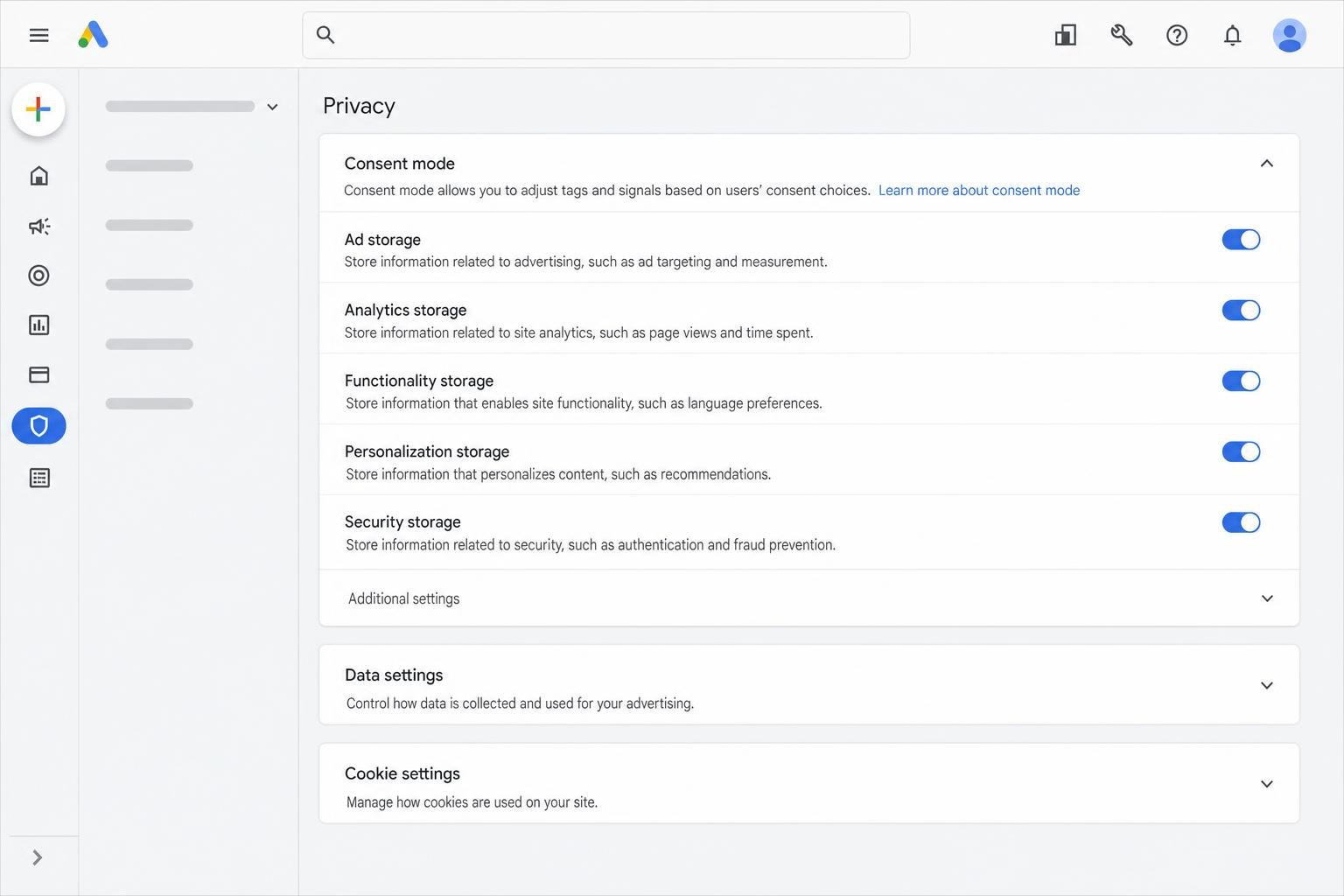
You can manage these advanced rules by following the instructions to Configure your Google tag settings – Google Ads Help. Within your settings, you can toggle automatic event detection, define internal traffic rules to exclude your own team’s visits, and set up cross-domain measurement. Cross-domain tracking ensures that if a user moves from your main site to a separate checkout domain, their journey is tracked as a single session. This is verified by checking that the destination URL contains the “_gl” linker parameter.
Configuring these settings correctly is vital because basic metrics like clicks can be highly misleading on their own. To understand why, read our analysis on Why Clicks and Impressions Aren’t the Most Important Metrics in Your PPC Analytics.
Consent Mode and Privacy Compliance
Google Consent Mode is a framework that adjusts how your Google tags behave based on the consent status of your website visitors. If a user declines cookie consent, the Google tag dynamically adjusts, sending anonymous, cookieless pings instead of storing personal identifiers. This allows you to recover lost conversion data through conversion modeling while fully respecting user privacy.
Within your advanced Google tag settings, you can also manually disable personalized advertising data collection or disable first-party cookies entirely by setting the conversion linker to false. This level of customization ensures your business remains compliant with regional privacy laws while maintaining a clear picture of ad performance.
Next Steps: Enhanced Conversions and Dynamic Values
Once your basic tag is live, you can implement advanced tracking features to supercharge your campaigns. To get started, refer to Set up your web conversions – Google Ads Help.
One of the most powerful features to enable is Enhanced Conversions. Enhanced conversions improve tracking accuracy by securely hashing first-party user data (like email addresses or phone numbers) using the SHA-256 algorithm before sending it to Google. This data is then matched against signed-in Google accounts to attribute conversions that otherwise would have been lost due to browser cookie restrictions. Starting in April 2026, Google is unifying web and lead enhanced conversions into a single, streamlined on/off setting.
Additionally, you can configure your tag to capture dynamic values, such as transaction-specific purchase amounts. By using CSS selectors in your conversion setup or passing variables through GTM, your tag can read the exact purchase value from your site’s checkout screen, giving you a precise look at your return on ad spend (ROAS).
Frequently Asked Questions About Google Ads Tagging
How long does it take for the Google tag to update conversion status in Google Ads?
After you implement or correct your Google tag, it can take up to 48 hours for the tracking status to update in your Google Ads conversion actions table. Do not worry if you do not see immediate green lights in your dashboard. To verify your installation immediately, use the Google Tag Assistant tool, which provides real-time debugging and confirms whether your tags are firing correctly.
Can I use one Google tag for multiple Google Ads accounts?
Yes. You do not need to install multiple Google tags if you are managing multiple Google Ads accounts or sending data to both Google Ads and Google Analytics. You can configure a single Google tag to route data to multiple destinations by adding multiple config commands within the script, or by adding multiple destination IDs within your Google Tag Manager configuration.
What is the difference between SEO and PPC tracking requirements?
While both require sitewide tracking, their implementation timelines and data structures differ. When evaluating SEO vs PPC Which Should You Use, it is important to understand that a comprehensive SEO campaign is a long-term investment that typically takes 12 to 18 months to yield substantial organic results. Because of this longer timeline, SEO tracking focuses heavily on organic search trends, user behavior, and Generative Engine Optimization (GEO) to prepare your site for the shift toward AI-generated answers.
In contrast, PPC tracking via the Google tag delivers immediate data. The moment your ads go live, the Google tag begins capturing clicks, costs, and conversions. This instant feedback loop allows you to make rapid, data-driven decisions while your long-term organic search strategy matures.
Conclusion

Implementing the Google Ads Google tag the right way is the single most important technical step you can take to secure your digital marketing success. From capturing first-party data in a privacy-first world to leveraging advanced features like enhanced conversions, your tracking infrastructure dictates how effectively you can optimize your campaigns.
At Dietz Group, we bring over 18 years of digital marketing expertise, using advanced technology and high-ROI strategies to help businesses dominate local search and maximize their ad spend. Whether you need to audit your current tracking setup, transition to a unified Google tag, or launch a fully optimized paid search campaign, our team is here to help.
Ready to take the guesswork out of your advertising? Explore our Google Ads Management Agency services today, and let’s build a tracking foundation that drives real, measurable growth for your business.