Why Getting Google Business Verification Help Right the First Time Matters
If you need Google Business verification help, here are the five steps to get it:
- Go to the verification status tool at business.google.com
- Log in with the Google account tied to your Business Profile
- Select your business from the list
- Click through the entire support workflow — don’t stop early
- Find the “Contact us” link at the very end of the workflow
Getting your Google Business Profile verified is the single most important step to showing up in local search results. Without it, customers can’t find you on Google Search or Maps — and you can’t edit your profile, respond to reviews, or see how people are finding your business.
The problem? The verification process can be confusing, slow, and sometimes frustrating. Google assigns your verification method automatically — you don’t always get to choose. And if something goes wrong, finding real support isn’t obvious. Google quietly changed its support process in 2024 without any public announcement, leaving many business owners stuck.
You’re not alone if you’ve hit a wall.
I’m Rob Dietz, a digital marketing consultant with over 18 years of experience helping business owners build their online presence — including navigating Google Business verification help challenges across dozens of industries. In the guide below, I’ll walk you through exactly what to do, step by step.
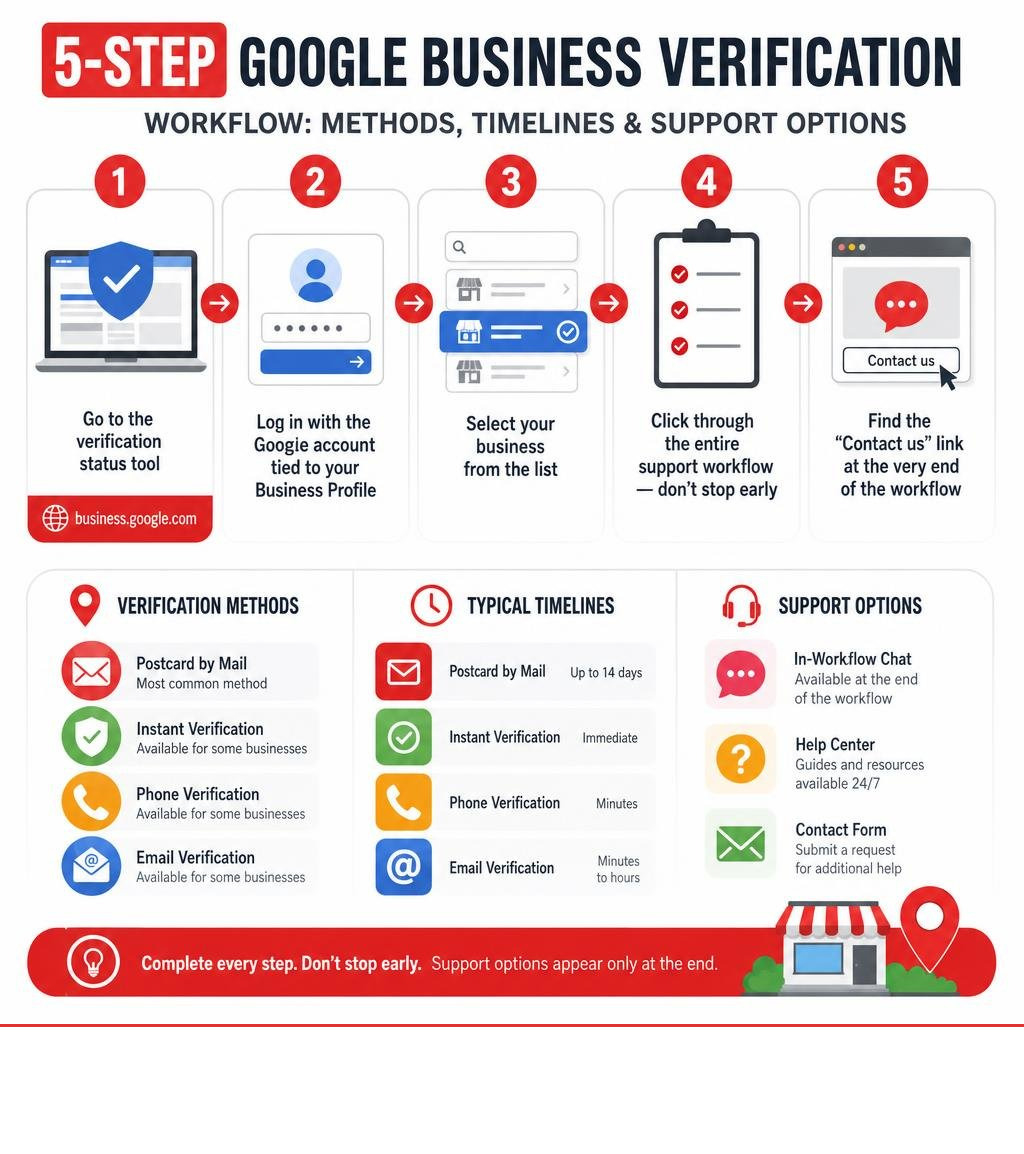
Basic Google Business verification help vocab:
Navigating Google Business Verification Help in 2026
The local search landscape has evolved dramatically over the last few years. As we navigate 2026, Google has tightened security measures to protect users from fake listings, spam, and fraudulent lead generation networks. Because of this, getting your profile verified is no longer as simple as waiting for a postcard to arrive in the mail.
In fact, as of 2025, traditional postcard verification has been almost entirely phased out for new listings. Google now heavily relies on digital-first, real-time verification methods to prove your business is legitimate and physically operating where you claim it is.
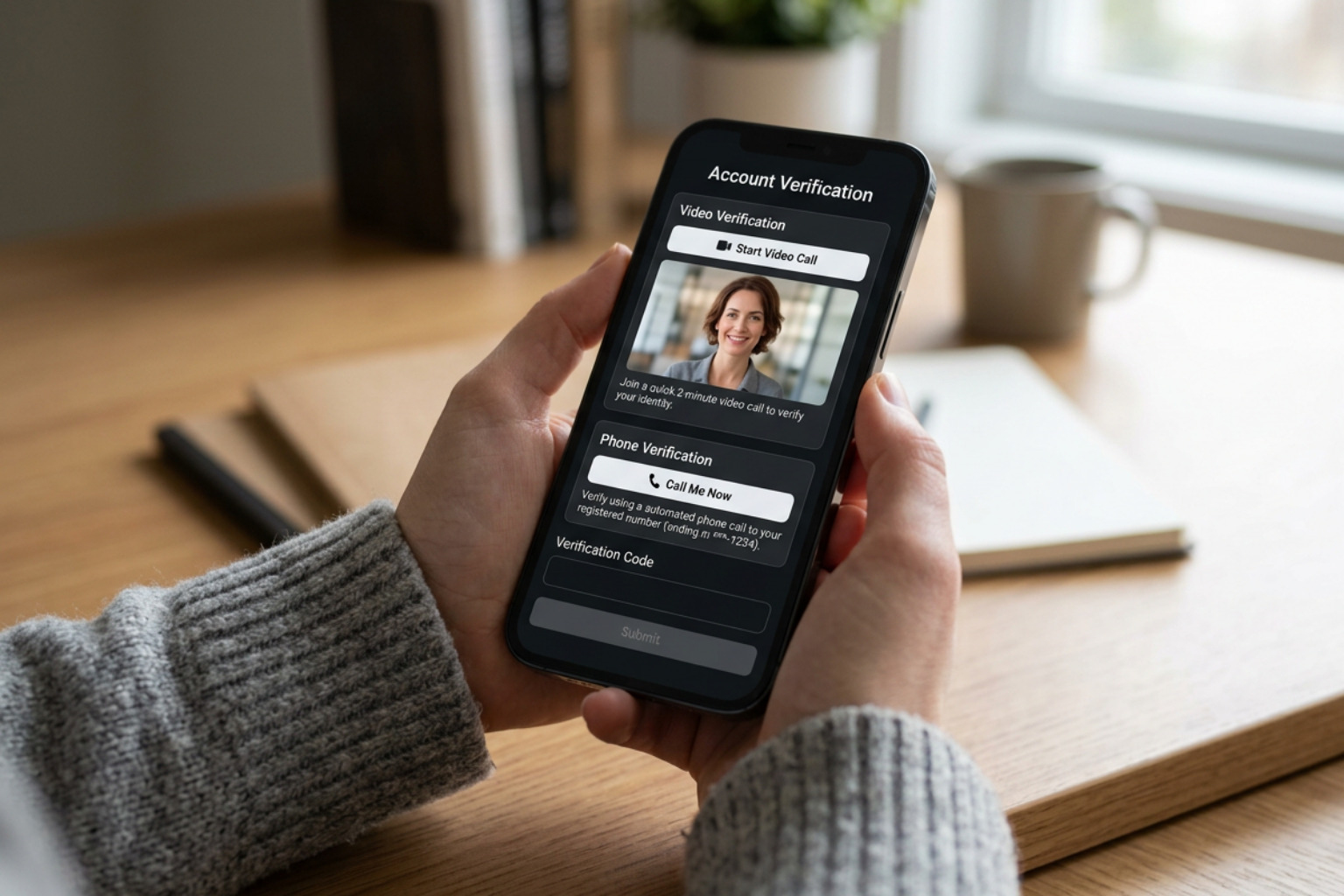
When you set up or update your profile, Google will automatically assign one or more of the following verification methods:
- Video Recording: You record a continuous, unedited video of your business location, equipment, and proof of management using your mobile device.
- Phone Call or SMS: Google sends a 5-digit verification code via an automated call or text message.
- Email Verification: A verification code is sent to an email address associated with your business domain.
- Live Video Call: You schedule a live call with a Google support representative to show your physical workspace and operations in real time.
- Instant Verification: This is automatically granted if your business is already verified with Google or if you meet specific trusted-partner criteria.
Understanding these methods is crucial because Google’s automated systems decide which option you receive based on factors like your business category, physical location, and account history. If you want to dive deeper into how Google structures these steps, you can read the official guide on how to Verify your business on Google – Google Business Profile Help.
Why Google Prioritizes Video Verification Over Other Methods
If you have tried to verify a profile recently, you have likely noticed that Google almost always pushes for video verification. This shift has left many business owners looking for Google Business verification help because filming a video can feel intrusive and technically challenging.
Google prioritizes video verification for three main reasons:
- Spam Prevention: Automated bots and bad actors can easily intercept emails, buy temporary phone numbers, or set up fake mailboxes. Generating a fake, unedited video of a physical storefront in real time is incredibly difficult for spammers.
- Proof of Physical Existence: A video shows Google’s reviewers that your shop, office, or service vehicle actually exists in the real world.
- Proof of Management: By showing yourself unlocking a door, operating a cash register, or using specialized tools, you prove that you are not just a random internet user claiming a listing, but the actual owner or manager.
While this process makes the platform safer for consumers, it introduces a unique set of hurdles. If you are struggling with this specific step, we have compiled a detailed breakdown of the Challenges with Google Business Profile Video Verification to help you understand why your videos might be getting flagged and how to fix them.
Can You Choose Your Preferred Verification Method?
A common question we hear from business owners is: “Can I just switch to email or phone verification?”
The short answer is no. Google’s algorithm automatically determines the verification method required for your profile. You cannot manually select your preferred option from a menu.
However, there is a small silver lining. If your profile is 100% complete, highly detailed, and matches real-world public records, Google may present you with a “Change method” button during the setup process if your initial method fails. To give your business the best chance of receiving easier verification options, you must ensure your profile is set up correctly from day one. You can learn the foundational steps to setting up a compliant profile in our guide on How to Get a Google Business Profile.
Step-by-Step: How to Contact Google Support for Verification Issues
When the automated verification steps fail, your only option is to contact Google Support directly. However, if you have tried to find a “Contact Us” form on Google’s help center lately, you know it feels like navigating a maze designed to keep you out.
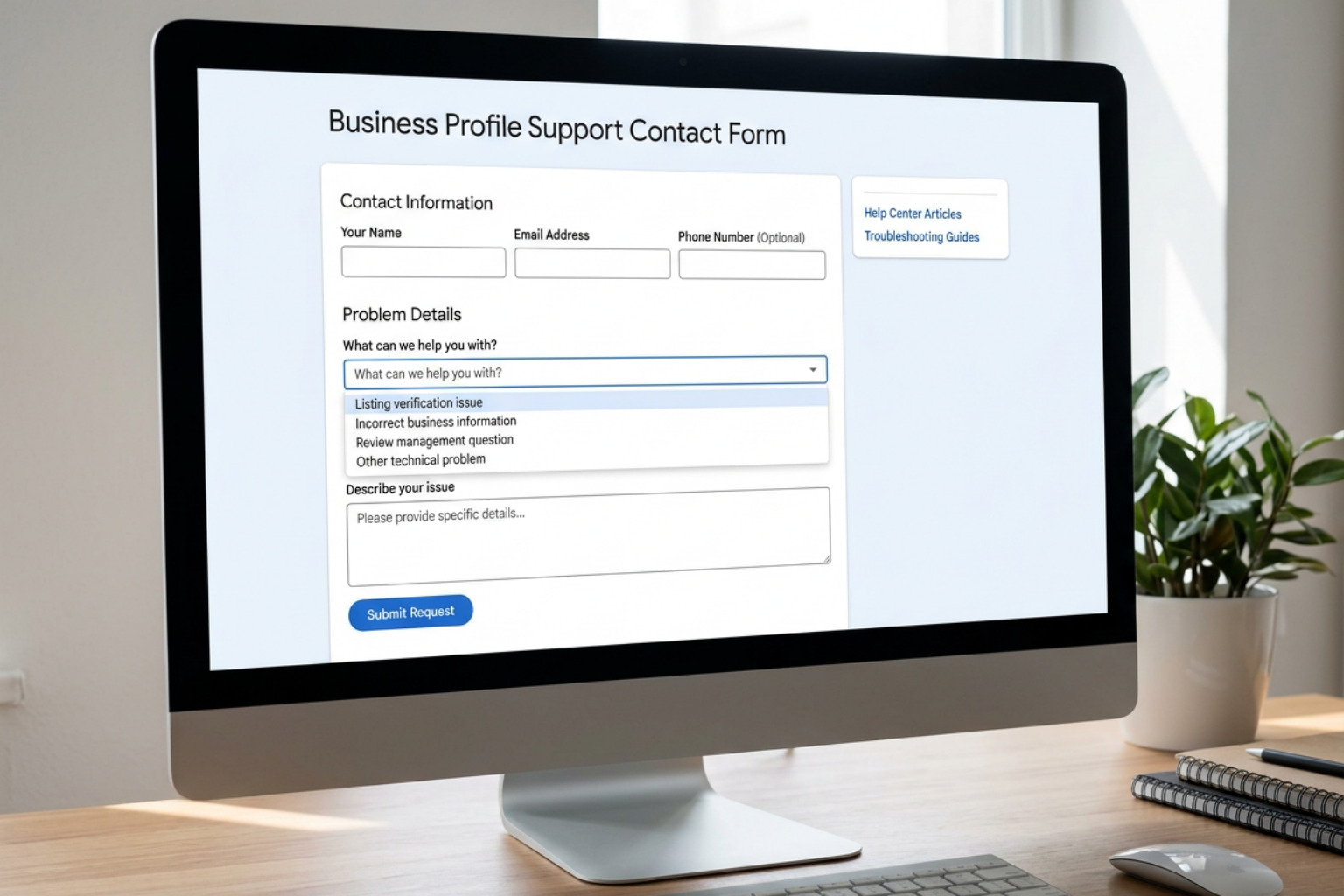
Google changed its verification support process without making a public announcement. They did this to funnel users toward self-help documentation and AI-driven troubleshooting tools to streamline support operations. If you try to use the standard “Get Help” forms, you will often find yourself stuck in an endless loop of articles that do not solve your problem.
To bypass this loop, you must use the official, dedicated support channels. The best starting point for official troubleshooting is the Get help with Google Business Profile | Support & troubleshooting page.
How to Access the Hidden Support Tool for Google Business Verification Help
If you are stuck in a verification loop, there is a specific, undocumented workflow you must follow to reach a human support representative. Here is exactly how to access the hidden “Contact Us” link:
- Navigate to the Verification Status Tool: Instead of searching the general help center, go directly to the Google Business Profile Verification Status Tool.
- Log In with the Correct Credentials: Make sure you are logged into the exact Google Account that you used to create or claim the business profile.
- Select Your Business: The tool will display a list of profiles associated with your account. Select the specific business listing that is experiencing verification issues.
- Review the Status: The tool will show your current status (e.g., “Verification required” or “Under review”).
- Click Through the Workflow: Click on the troubleshooting prompts. Do not exit the screen when the tool suggests help articles. Continue clicking “Next” or “Continue” until you reach the final step of the diagnostic tool.
- Locate the “Contact Us” Link: At the very bottom of the final diagnostic screen, Google will display a hidden “Contact Us” button or form link. This link bypasses the standard AI filters and sends your ticket directly to the specialized verification support team.
When to Seek Professional Google Business Verification Help
While the steps above will get you to the support form, actually getting a resolution can still be a headache. Because Google relies heavily on automated, templated replies and outsourced support staff, you might receive generic rejections like “Your business does not meet our guidelines,” without any explanation of what you did wrong.
If you have submitted multiple tickets, had your videos rejected, or received nothing but automated email templates, it may be time to seek professional assistance. Getting stuck in a verification loop keeps your business invisible to local customers, which directly impacts your bottom line. We handle these technical headaches daily. If you want to hand this process over to experts who know how to communicate with Google’s support teams, explore our Google Business Profile Management Services to get your listing active and fully optimized.
How to Complete Video Verification Successfully
Because video verification is now the dominant method in 2026, mastering this process is essential. Google requires a single, continuous, unedited video shot on a mobile device. If your video cuts out, looks blurry, or fails to show the right details, Google’s automated review system or human editors will reject it.
Before you press record, you need to plan your route. You cannot edit the video or stitch multiple clips together, so you have to capture everything in one smooth take. For a comprehensive look at the official requirements, refer to the guide on how to Verify your business with a video recording – Google Business Profile Help.
Key Requirements for Your Verification Video
To ensure your video is approved on the first try, you must include three distinct categories of evidence in a continuous shot. We recommend starting outside and walking in.
- 1. Your Physical Location: Start your video outside. Film your street sign, neighboring businesses, your building’s exterior, and your permanent business signage. If you are in an office building, show the directory in the lobby and the suite number on your door. This proves you are not operating out of a fake address or a P.O. Box.
- 2. Proof of Physical Existence (Your Equipment): Walk into your workspace and show the physical tools of your trade. If you run a restaurant, show the kitchen and point-of-sale system. If you run a plumbing business, show your branded van, tools, and inventory. If you are a service-area business operating from home, show your home office, business registration documents, and physical tools.
- 3. Proof of Management: This is the step most people miss. You must show that you have authorized access to the business. Film yourself unlocking the front door with a key, logging into your business software, or opening a cash register.
For a deeper dive into planning your recording route, check out our comprehensive list of Google Business Profile Video Verification Tips.
What to Do If Your Video Verification Is Denied
If your video is rejected, do not panic. It is incredibly common to fail on the first attempt because of minor mistakes, such as capturing a customer’s face or showing sensitive financial documents on screen.
If you are denied, take the following steps:
- Analyze the Rejection: Check your Google Business Profile dashboard for any specific error messages or emails from Google explaining the denial.
- Review Your Video for Violations: Did you accidentally show private information, like customer credit card details or employee faces? Did your video cut out or lose cellular connection?
- Prepare a Clearer Route: Plan a new recording that emphasizes your permanent signage and proof of management even more clearly.
- Try Again or Appeal: If the option to upload a new video is available, record and submit a new one. If the system blocks you, use the hidden support workflow to request a manual review or a live video call.
For more help getting your profile set up correctly after a denial, read our Ultimate Guide to Google Business Profile Setup.
Avoiding Common Verification Pitfalls, Duplicates, and Suspensions
Verifying your profile is only half the battle; you also need to make sure Google doesn’t instantly suspend it or mark it as a duplicate during the process. Google’s automated security filters are highly sensitive. If your profile data looks inconsistent, your listing will be flagged.
To help you understand what Google expects based on your business model, review this comparison table:
| Requirement | Storefront Businesses (e.g., Retail, Offices) | Service-Area Businesses (e.g., Plumbers, Cleaners) |
|---|---|---|
| Physical Address | Must be a real, customer-facing location. No P.O. Boxes. | Used for verification only; hidden from the public profile. |
| Permanent Signage | Highly required. Must match the business name exactly. | Branded vehicles, tools, and business licenses are acceptable. |
| In-Person Contact | Customers must be able to visit during listed business hours. | You must travel directly to customers to deliver services. |
| Ineligible Models | Shared co-working spaces without dedicated signage or staff. | Online-only e-commerce brands with no local physical service. |
If you are dealing with a profile that has already been flagged, you can learn how to resolve these issues by reviewing the official guide to Resolve duplicate profiles & ownership issues – Google Business Profile Help.
Why Google Marks Profiles as Duplicates or Suspends Them
The most common reason for a sudden suspension or a “Duplicate Profile” status is a violation of Google’s strict representation guidelines.
- Multiple Profiles for One Business: You are only allowed one profile per business entity. If you create a second profile to target a different service or neighborhood, Google will flag both.
- Shared Addresses without Distinct Signage: If you operate multiple distinct businesses out of the exact same address, you must have separate, permanent signage for each business visible from the exterior or lobby.
- Ineligible Business Models: Rental properties, vacation homes, and temporary event spaces are not eligible for individual profiles.
- Slow Ownership Transfers: If you are trying to claim an existing profile that someone else verified, the current owner has exactly 3 days to respond to your transfer request. If they ignore it or deny it, creating a new listing instead of appealing can trigger a duplicate flag.
To keep your listing compliant and highly visible, read our Ultimate Guide to Google Business Profile Optimization.
Re-Verifying Your Profile After Making Changes
Once you are verified, you must tread carefully. Making major changes to your business details can instantly trigger a re-verification request, putting your listing back into “Pending” status and hiding it from search results.
Triggers for re-verification include:
- Changing your business name
- Updating your physical address
- Modifying your primary business category
- Adding a phone number that doesn’t match your official website
If you need to make these updates, do them one at a time and ensure your website and official business registration documents are updated first so Google’s automated scrapers can verify the changes.
Frequently Asked Questions About Google Business Verification
How long does the Google Business Profile verification process take?
The timeline depends entirely on the verification method assigned to you. Phone and email verification are usually instant or take just a few minutes. Video verification and manual reviews, however, typically take up to 5 business days to be completed by Google’s team. If you are managing multiple locations, formatting errors in your spreadsheets can cause significant delays. You can read more about resolving these issues in the official guide to Understand delays in bulk verification – Google Business Profile Help.
Can online-only businesses verify a Google Business Profile?
No. Google Business Profiles are strictly reserved for businesses that make physical, in-person contact with local customers. If your business operates entirely online, does not have a physical storefront, and does not travel to serve clients in a specific local area, you are not eligible for a profile.
What happens if a verification code expires?
Google’s verification codes are highly secure and expire after exactly 30 days. If you do not enter your code within this timeframe, or if you make major edits to your profile while waiting for a code, the code will become invalid. You will need to log back into your dashboard and request a brand-new code.
Conclusion
Getting your Google Business Profile verified is the absolute foundation of local search success. But in 2026, verification is just the first step in a rapidly changing digital landscape.
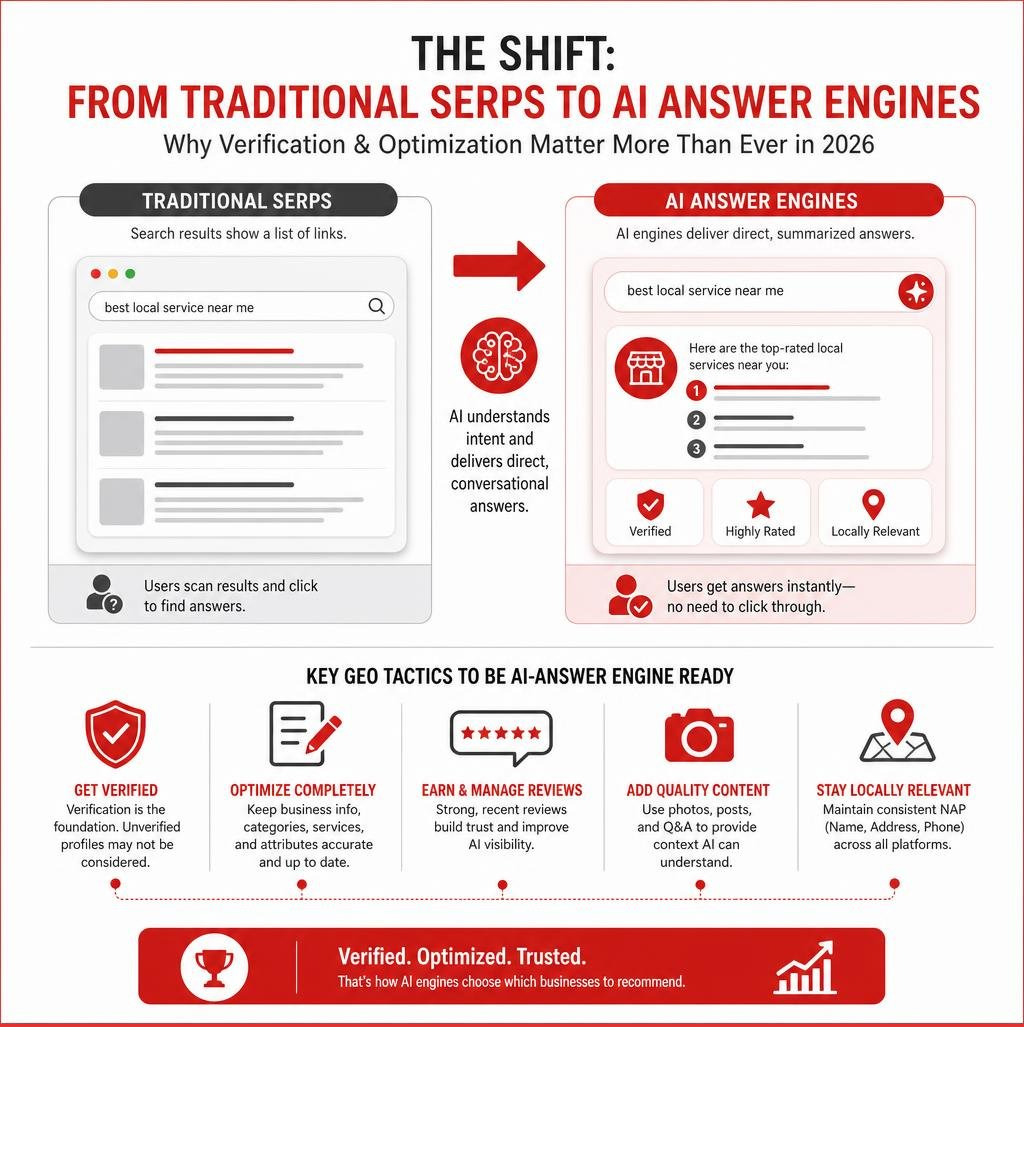
Today, local search is shifting from traditional search results to AI-driven answers. This evolution is known as Generative Engine Optimization (GEO). When customers search for local services, AI engines compile answers based on highly optimized, verified, and active business profiles. If your profile is unverified or poorly optimized, your business won’t even be considered by these AI search models.
While paid advertising (PPC) can give you immediate visibility, it stops the moment you stop running ads. A dedicated Local SEO and GEO strategy builds long-term authority, ensuring you show up organically when high-intent customers are ready to buy. However, local search is a marathon, not a sprint — a highly effective SEO campaign typically takes 12 to 18 months to deliver its full, compounding results.
At Dietz Group, we bring over 18 years of digital marketing expertise, combining proven high-ROI strategies with advanced AI technology to help your business dominate local search results. Let us handle the technical frustrations of verification, optimization, and local search rankings so you can focus on running your business.
Ready to claim your spot at the top of local search? Explore our Google Business Profile Management Services today, and let’s get your business verified and growing!