The Fastest Way to Add a Manager to Google Ads
Adding a manager to Google Ads is something most business owners need to do at some point — whether you’re bringing on an agency, a freelancer, or a team member.
Here’s the quick answer:
- Sign in to your Google Ads account
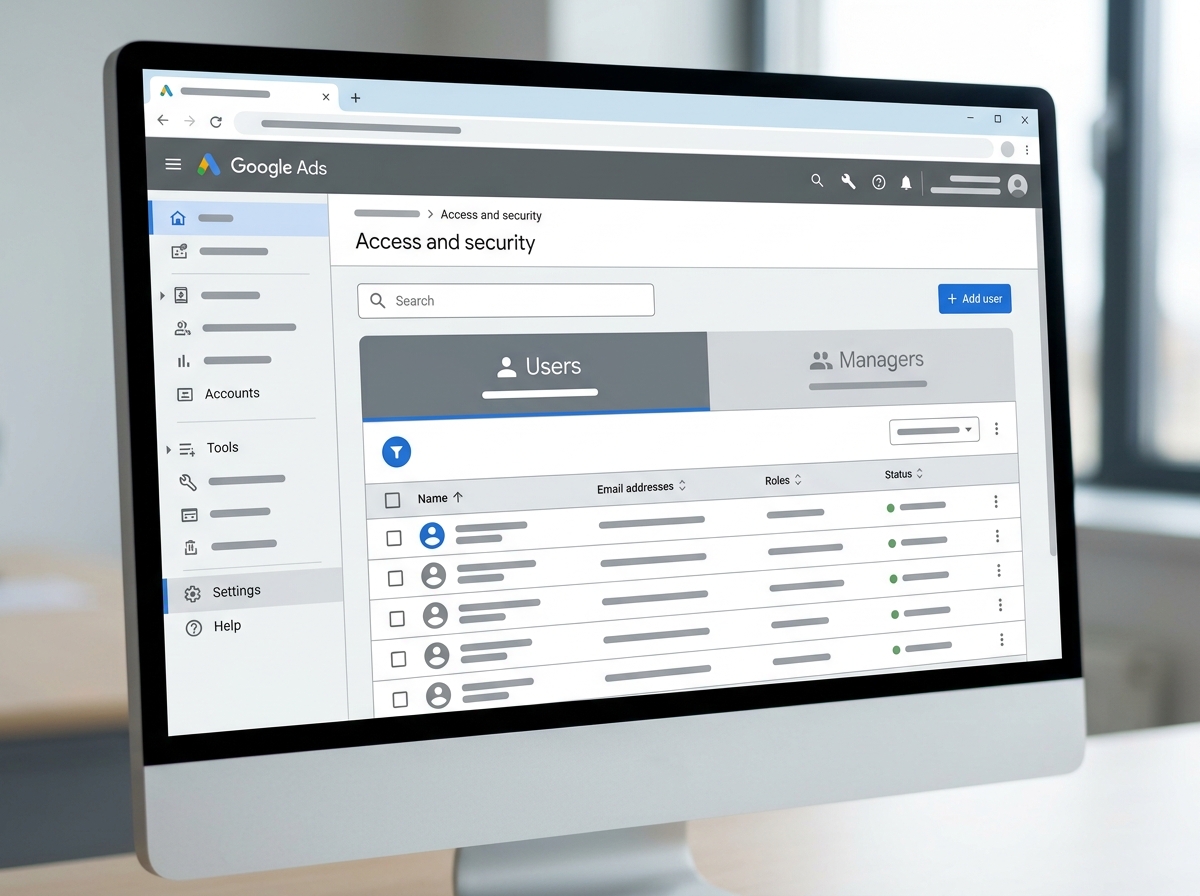
- Click the Admin icon and select “Access and security”
- Go to the Users tab and click the blue plus (+) button
- Enter the user’s email address and select their permission level
- Click “Send invitation” — they’ll get an email to accept
Working with an agency? Share your 10-digit Customer ID with them instead. They’ll send a link request from their Manager Account (MCC), and you accept it under the Managers tab in Access and security.
That’s the core of it. But getting the right access level to the right people — without creating security risks — takes a bit more know-how. That’s what this guide covers.
I’m Rob Dietz, founder of the Dietz Group and a Google Ads Search Partner who has been managing Google campaigns since 2008. Over those 15+ years, I’ve helped countless small business owners add a manager to Google Ads securely and efficiently, without the usual confusion. Let’s walk through exactly how to do it.
Understanding Account Types and Permission Levels
Before we dive into the “how,” we need to talk about the “what.” In our experience at Dietz Group, most confusion stems from not knowing which type of account you’re dealing with. Google Ads isn’t a one-size-fits-all platform; it has different structures depending on whether you are running ads for one local business in Monroe, NC, or managing a portfolio of fifty different brands.
Standard Account vs. Manager Account (MCC)
A Standard Google Ads account is what most individual businesses use. It contains your campaigns, keywords, and billing info.
A Manager Account, often called an MCC (My Client Center), is an umbrella account. Think of it as a master key. It allows a person or agency to view and manage multiple Google Ads accounts from a single dashboard with one login. If you’re hiring a Google Ads Management Agency, they will almost certainly use an MCC to access your account.
Choosing the Right Permission Level
When you add manager to google ads, you shouldn’t just give everyone “Admin” access. It’s like giving a spare key to your house; you might give the housekeeper a key to the front door, but you wouldn’t necessarily give them the combination to your floor safe.
Google provides several distinct roles, and choosing the right one is vital for Account security. Here is how they break down:
| Role | What They Can Do | Best For |
|---|---|---|
| Email-only | Receive reports and alerts via email. Cannot log in. | Executives who just want to see results. |
| Billing | View and edit billing information. | Your accounting or finance department. |
| Read-only | View campaigns and reports. Cannot make changes. | Auditors or stakeholders who shouldn’t touch settings. |
| Standard | Create, edit, and delete campaigns. Cannot manage users. | Most marketing employees or freelancers. |
| Admin | Full control, including adding/removing users. | Business owners and trusted lead strategists. |
Understanding What Do Google Ads Do? is the first step in realizing why these permissions matter—every click and setting change can impact your bottom line.
How to Add Manager to Google Ads via Direct Invitation
Direct invitations are best when you are adding an individual person—like a new hire or a specific consultant—rather than an entire agency. This process happens entirely within your dashboard.
To get started, you’ll need to Navigate to Google Ads and sign in. Make sure you are using an email address that already has Administrative access, or you won’t see the necessary “Admin” menu.
One thing to keep in mind: the person you are inviting must have a Google Account associated with their email address. They don’t necessarily need a @gmail.com address, but their current email must be registered as a Google login. If they don’t have this set up, the invitation will often fail or they won’t be able to accept it.
Step-by-Step: Add Manager to Google Ads for Individual Users
Follow these steps to bring a new user on board:
- Sign in: Log into your account. If you manage multiple accounts, ensure you’ve selected the correct one.
- Find the Admin Icon: Look for the gear or “Admin” icon (usually in the left-hand sidebar or top navigation).
- Select Access and Security: This is where you manage all your users.
- The Blue Plus: Click the blue “+” button to start a new invitation.
- Enter Email: Type in the email address of the person you want to add.
- Select Role: Choose one of the levels we discussed earlier (Standard is usually the “sweet spot” for managers).
- Send Invitation: Click the button.
The user will receive an email. They must click “Accept” within that email to finalize the process. Invitations do expire (usually after about 30 days), so if they wait too long, you’ll have to delete the pending invite and send a new one. This is a core part of Understanding Google PPC and Pay-Per-Click Advertising—collaboration is key, but it must be managed correctly. If you are working within the more complex Google Ad Manager platform for publishers, the steps are similar but located under Admin > Access & authorization.
Troubleshooting Your Add Manager to Google Ads Request
Sometimes, technology just doesn’t want to cooperate. If you’re trying to add manager to google ads and hitting a wall, check these common issues:
- Domain Restrictions: Some accounts have “Allowed Domains” set up for security. If you’re trying to add someone with a @freelancer.com address but your account only allows @yourcompany.com, the invite will be blocked. You can adjust this under the “Security” tab in the “Access and security” menu.
- Invitation Not Received: Ask the user to check their spam folder. If it’s not there, try canceling the invitation and resending it.
- Link Doesn’t Work: Sometimes browser cookies interfere with the “Accept” link. Have the invitee right-click the “Accept” button in their email, copy the link, and open it in an Incognito or Private browsing window.
- Google Account Requirement: If they aren’t using a Google-managed email, they can link their existing work email to a new Google account without creating a new Gmail inbox.
If you are still stuck, you can always check the Support for Ad Manager or the general Google Ads help center for specific error codes.
Linking Your Account to an Agency Manager Account (MCC)
If you’ve hired a Google Ads Management Agency, you shouldn’t be adding five different people from their team individually. Instead, you should link your account to their Manager Account.
This is a “pull” rather than a “push” process. The agency will request access to your account using your Customer ID, and you will simply approve it. This is much more secure because the agency manages their own team’s access levels internally, and you can revoke the entire agency’s access with one click if you ever stop working together.
Using Your Customer ID to Add Manager to Google Ads
The Customer ID (CID) is a unique 10-digit number (formatted like 123-456-7890) that identifies your account. You can find it in the top right-hand corner of your Google Ads dashboard, right next to your account name or email address.
Here is the professional workflow for linking:
- Find your CID: Locate that 10-digit number.
- Share with the Agency: Send that number to your agency partner.
- The Agency Requests Access: They will enter your CID into their MCC and send a link request.
- You Accept: You will receive an email notification. Alternatively, go to Admin > Access and security and click on the Managers tab.
- Actions Column: You will see the pending request from the agency. Click Accept in the “Actions” column.
Once you accept, the agency will have administrative access to manage your campaigns, but you still “own” the account. According to official Google documentation, this is the preferred method for third-party management because it keeps your login credentials private.
Best Practices for Secure Account Management
At Dietz Group, we don’t just want your ads to perform well; we want your data to be safe. We’ve seen horror stories where former employees still had access to accounts years after leaving, or where a “Standard” user accidentally deleted a high-performing campaign.
Use the Change Log
If you ever wonder “Who changed my budget?” or “Why was this ad paused?”, the Change Log is your best friend. It records every single action taken in the account, which user did it, and when. It’s an essential tool for transparency when you add manager to google ads.
Periodic Access Audits
Google recommends having at least two Administrators on every account. Why? Because if one person loses access to their email or leaves the company unexpectedly, you aren’t locked out of your own advertising. However, you should audit your user list every six months. Remove anyone who no longer needs access as part of a standard “deboarding” workflow.
Security Features
- Two-Factor Authentication (2FA): Require all users to have 2FA enabled. This prevents unauthorized access even if someone’s password is stolen.
- Local Strategy: If you are a local business, Combining Google Ads and Local SEO is a powerful move. Just ensure that whoever is managing your SEO isn’t given “Admin” ads access unless they actually need to manage the PPC side of things.
Frequently Asked Questions about Google Ads Access
How do I find my Google Ads Customer ID?
Your Customer ID is the 10-digit number located in the top right corner of your Google Ads screen when you are logged in. It usually appears next to your account name. You’ll need this whenever you contact Google support or when you want to add manager to google ads via an agency link.
Can I have more than one account administrator?
Yes, and you should! We recommend having at least two. This ensures that if one admin is unavailable or their account is compromised, you still have a way to manage your business. Just be sure that both admins are highly trusted individuals.
How do I remove a manager or user from my account?
Go to Admin > Access and security. On the Users tab (for individuals) or the Managers tab (for agencies), find the person or account you want to remove. In the “Actions” column, click Remove access. Their access is revoked instantly.
Conclusion
Managing who has access to your digital marketing assets is a fundamental part of running a modern business. Whether you are performing a direct invite or linking to an agency MCC, the goal is the same: providing the right people with the tools they need to help you grow while keeping your data secure.
At Dietz Group, we take the technical headache out of the equation. With over 18 years of expertise and a focus on high-ROI, AI-driven strategies, we help businesses in Monroe, NC, and beyond dominate their local search results. We don’t just “run ads”—we build comprehensive lead-generation engines.
If you’re ready to stop guessing and start growing, Get started with a Google Ads Management Agency that puts your security and results first. Contact us today for a consultation, and let’s get your Google Ads account working harder for you.