Why Learning to Manage My Business Account Google Settings Can Make or Break Your Local Visibility
If you want to manage my business account on Google effectively, here is what you need to know right now:
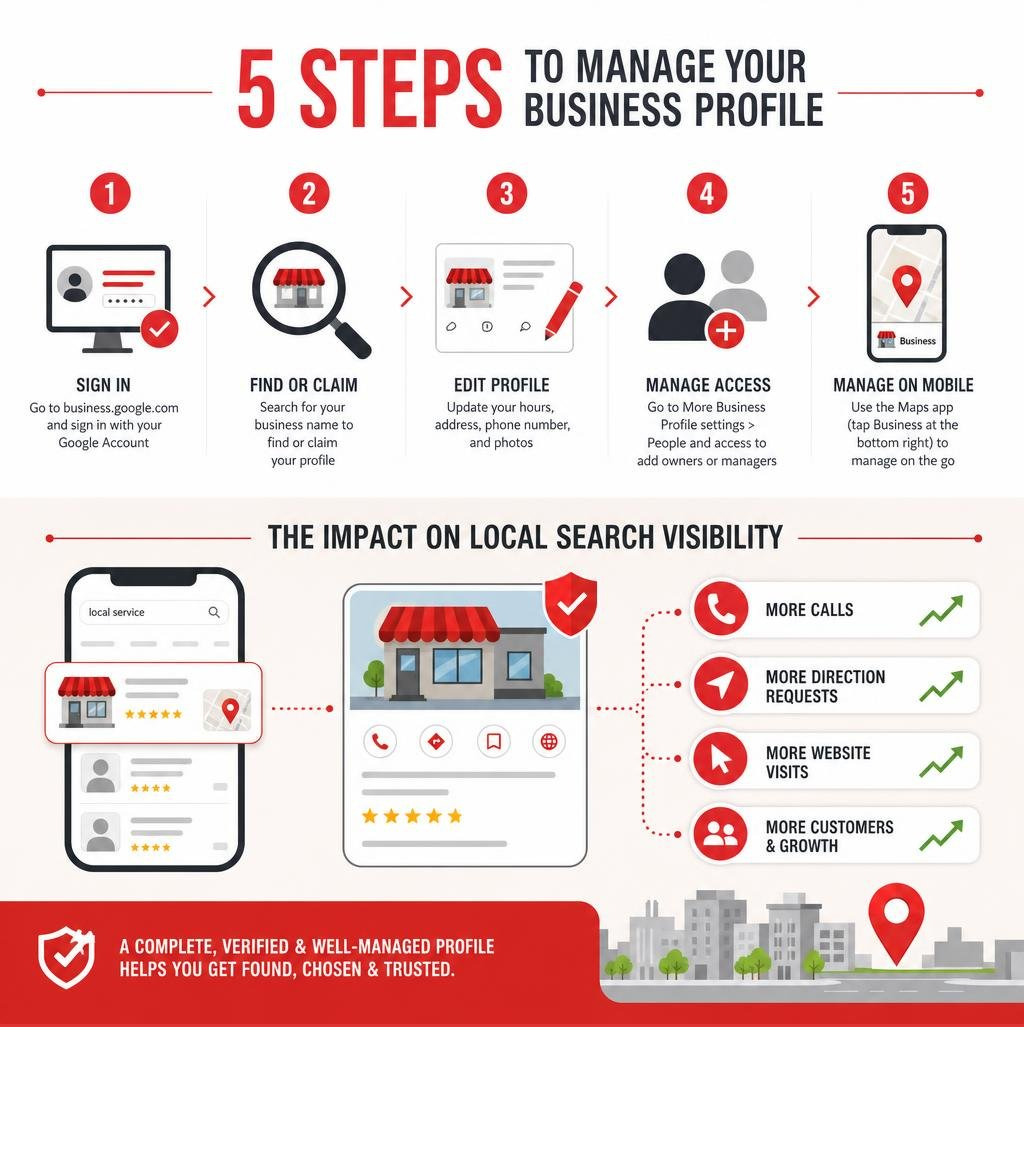
Quick answer — how to manage your Google Business Profile:
- Go to business.google.com and sign in with your Google Account
- Search for your business name to find or claim your profile
- Select Edit profile to update your hours, address, phone number, and photos
- Go to More Business Profile settings > People and access to add owners or managers
- Use the Google Maps app (tap Business at the bottom right) to manage on mobile
Your Google Business Profile is often the very first thing a potential customer sees when they search for what you offer. It shows up on Google Search and Google Maps — and in June 2026, it is also feeding directly into AI-powered answer engines that pull local business information to answer search queries without a single click.
That means your profile is not just a listing anymore. It is a live, dynamic asset that influences whether you get found — or get skipped.
A complete, verified, and well-managed profile can drive calls, direction requests, and website visits. An incomplete or neglected one quietly costs you customers every single day.
I’m Rob Dietz, founder of the Dietz Group and a digital marketing consultant with over 18 years of experience helping small businesses grow their local search presence — including hands-on work to manage my business account Google settings for clients across a wide range of industries. In the guide below, I’ll walk you through everything you need to know to take full control of your profile.
Learn more about manage my business account google:
Google Business Profile vs. Google Account: What is the Difference?
Before diving into the advanced settings, we must clarify a fundamental distinction that trips up many business owners: the difference between a Google Account and a Google Business Profile.
A Google Account is your master login credential. It is what you use to access Gmail, Google Drive, Google Sheets, and other Google services. It belongs to you as an individual (even if it uses your company email address).
A Google Business Profile, on the other hand, is the public-facing listing that represents your physical storefront or service area on Google Maps and local search results. It contains your business name, address, operating hours, photos, and customer reviews.
To help clarify this concept, check out our guide on What is a Google Business Profile.
Not every business is eligible for a Google Business Profile. Google has strict guidelines regarding who can claim one:
- Storefront Businesses: You must have a physical location where customers can walk in and interact with your staff during stated business hours.
- Service-Area Businesses: If you do not have a storefront but deliver services directly to customers at their locations (such as plumbers, electricians, or mobile pet groomers), you are eligible to set up a profile with a defined service area.
- Ineligible Businesses: Online-only brands, e-commerce stores, vacation rental properties, and unoccupied real estate listings are not eligible for a profile.
If you are just getting started and need a step-by-step walkthrough, we have put together an easy-to-follow guide on How to Get a Google Business Profile to help you claim your digital storefront.
How to Setup, Verify, and Manage My Business Account Google Settings
Setting up your profile correctly from day one is essential to ensure Google indexes your business accurately.
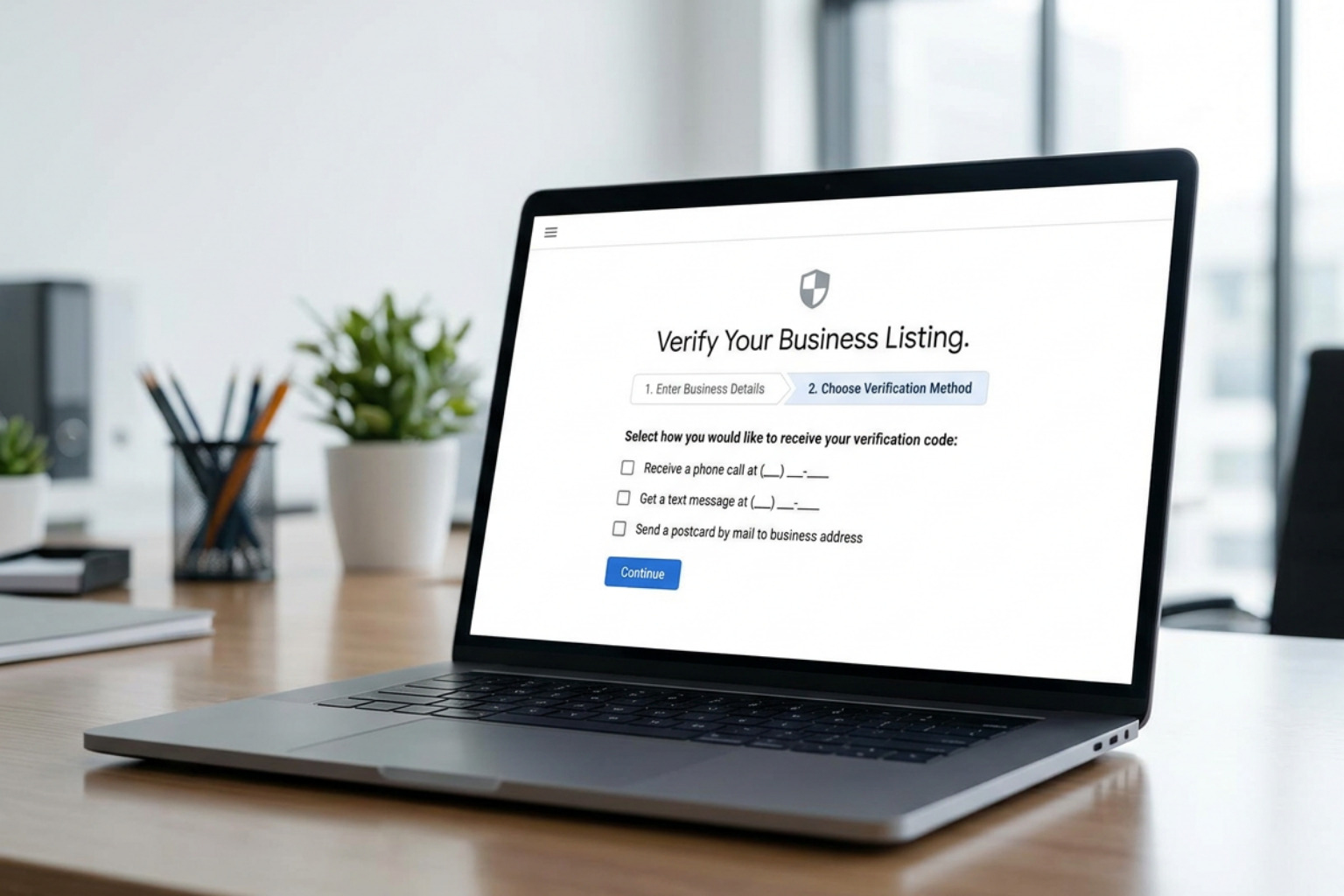
To set up and verify your listing, follow these steps:
- Sign In: Go to the Get Listed on Google – Google Business Profile portal and sign in using the Google Account associated with your business. We highly recommend using an email with your business’s domain name to simplify the verification process.
- Add Your Business: Enter your exact, legal business name. Make sure it matches your real-world signage and branding perfectly. Select your primary business category. Be as specific as possible (e.g., choose “HVAC Contractor” rather than just “Contractor”).
- Enter Location Details: If you have a physical storefront, enter your complete, accurate address. If you are a service-area business, define your service territory by entering specific cities, counties, or zip codes.
- Verification: Google must confirm that you are the actual owner of the business before your profile can go live. You can learn more about this process directly from the Get started with Google Business Profile – Google Business Profile Help page. Google will prompt you with one or more of the following verification methods:
- Postcard Verification: Google mails a physical postcard containing a 5-digit verification code to your business address. It typically arrives within 5 to 14 business days.
- Phone or Text Verification: For eligible businesses, Google will send a code via an automated phone call or SMS text message to your primary business phone number.
- Email Verification: Google sends a verification code directly to your registered company email address.
Once you receive your verification code, log back into your dashboard, enter the code, and your profile will be officially verified and unlocked for full public management.
Accessing Settings to Manage My Business Account Google Profiles
Once verified, you can update your business information directly from the search results page or through the Google Maps app. Simply search for your business name while signed into your associated Google Account, and you will see the merchant management menu.
When you click on Edit profile, you can adjust several critical fields to ensure your listing remains highly optimized:
- Business Description: Write a clear, engaging description of up to 750 characters. Focus on what makes your business unique, your history, and what services you offer. Do not include URLs or HTML code here, as Google will reject them.
- Categories: You can select one primary category and up to nine secondary categories. Ensure these are highly relevant to your core services.
- Phone Numbers: You can add up to three phone numbers, including your primary business line and secondary mobile or landline numbers. You can also hide your phone number entirely under the advanced settings if you prefer customers only contact you via your website or chat.
- Website and Social Media Links: Add your complete website URL (including the
https://prefix). In eligible regions, you can also add one direct social media link per platform for supported networks.
For a complete breakdown of every editable field, refer directly to the official Edit your Business Profile – Google Help documentation.
Managing Roles, Owners, and Managers
As your business grows, you will likely need to share management duties with team members or external digital marketing agencies. Rather than sharing your personal Google Account password—which is a major security risk—Google allows you to assign specific roles to different users.
There are two primary roles available for individual profiles:
- Owners: Owners have full administrative control. They can edit business information, respond to reviews, create posts, add or remove other users, and even delete the entire profile from Google. Every profile must have at least one Primary Owner.
- Managers: Managers have almost all the same administrative capabilities as owners, except they cannot add or remove other users, change user roles, or delete the profile.
To add, edit, or remove users on your profile, follow these steps:
- Go to your Business Profile on Google Search or Maps.
- Click the three-dot menu icon (More settings) and select More Business Profile settings, then click People and access.
- To add a user, click Add, enter their email address, select their role (Owner or Manager), and click Invite.
- To change a user’s role, click their name, select Edit access, choose the new role, and click Save.
- To remove a user, click their name and select Remove person.
The 7-Day Restriction Rule: For security purposes, Google enforces a strict 7-day waiting period for all newly added owners and managers. During these first 7 days, new users cannot delete the profile, remove existing users, or transfer primary ownership of the listing.
Transferring Primary Ownership: If you sell your business or transition management to a new primary stakeholder, you can transfer primary ownership. To do this, the recipient must already be listed as an Owner on the profile for at least 7 days. Once that period has passed, the current Primary Owner can go to the People and access settings, select the user, and change their role to Primary Owner.
Advanced Management: APIs and Scaling Multiple Locations
For franchises, agencies, and enterprises with dozens or hundreds of locations, managing profiles manually on Google Search is highly inefficient.

To manage operations at this scale, Google provides distinct account structures:
- Personal Accounts: Ideal for single-location business owners who only manage one or two profiles.
- Organization Accounts: Designed for agencies or corporate marketing teams. This account type serves as a master container to manage multiple user groups and location groups.
- Location Groups: Allows you to group specific business locations together (e.g., by region, state, or franchise division) to perform bulk updates and edits.
- User Groups: Allows you to grant access to a team of people simultaneously, rather than inviting them to individual locations one by one.
To understand how these organizational structures fit together, we recommend reading the official guide on how to Manage locations at scale | Google Business Profile APIs | Google for Developers.
Using APIs to Manage My Business Account Google Locations at Scale
If you have a developer team or use custom internal software, you can programmatically manage your locations using the Google Business Profile APIs. This allows you to push updates to hundreds of locations instantly, automate review monitoring, and sync operating hours across multiple directories simultaneously.
Key developer resources for programmatic management include:
- The My Business Account Management API: This API serves as the primary interface for managing user access, invitations, and permissions. You can view the full documentation at the My Business Account Management API | Google Business Profile APIs | Google for Developers page.
- Managing Account Resources: To understand the JSON structure of accounts, permissions, and roles, refer to the REST Resource: accounts | Google Business Profile APIs | Google for Developers reference.
- Working with Account Data: For step-by-step instructions on listing, retrieving, and updating account details programmatically, follow the developer tutorial on how to Work with account data | Google Business Profile APIs | Google for Developers. Only
BUSINESSaccount types can be updated via the API, and the only editable field is theaccountName.
Best Practices for Local SEO, GEO, and AI Search in June 2026
The local search landscape has evolved significantly. Traditional search engine optimization (SEO) is now closely integrated with Generative Engine Optimization (GEO). AI-driven search engines and answer engines pull details directly from your Google Business Profile to answer highly specific local queries.
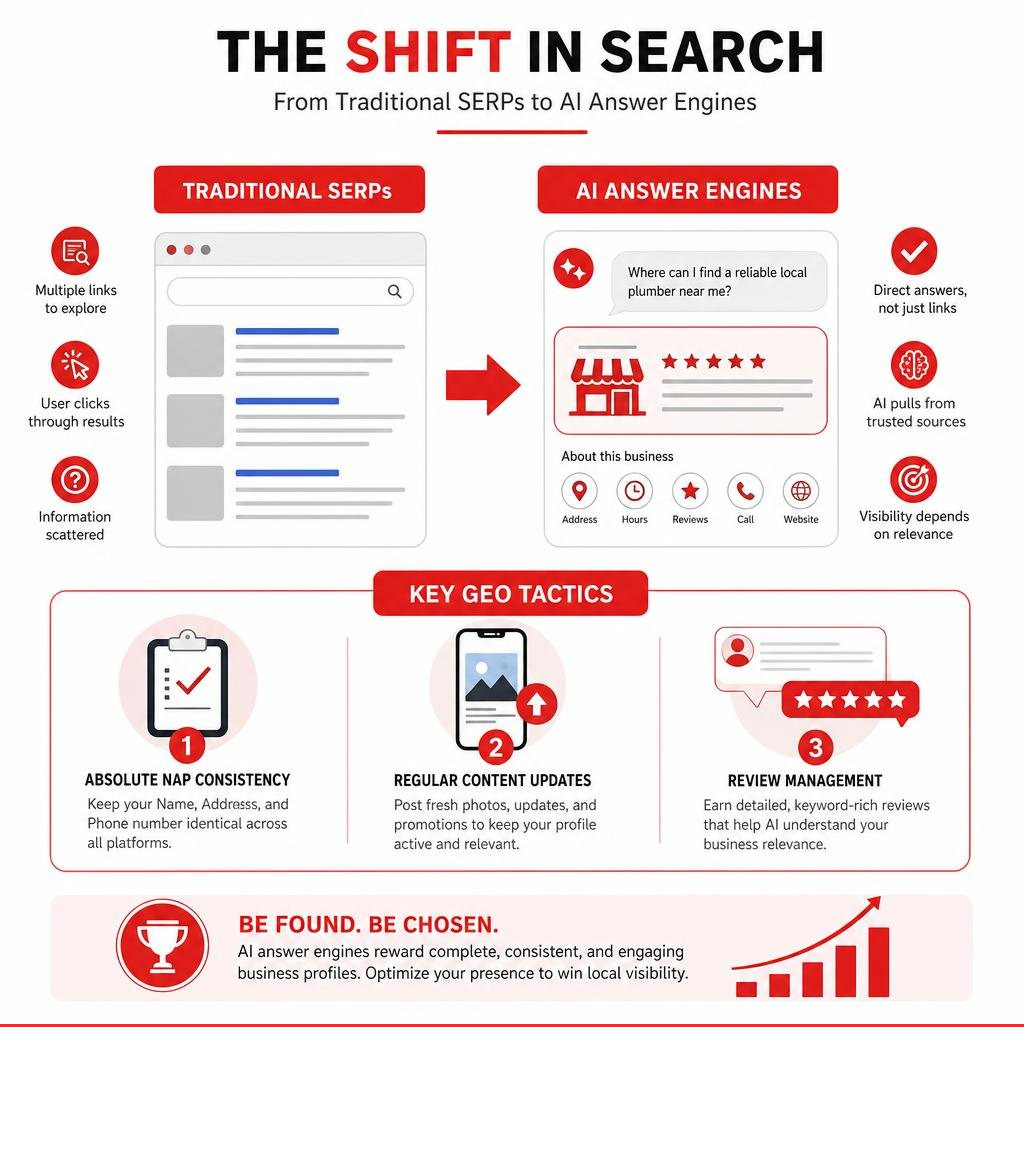
To ensure your business remains visible in this AI-driven search ecosystem, we recommend focusing on three core pillars:
- Absolute NAP Consistency: Your Name, Address, and Phone number (NAP) must be identical across your website, Google Business Profile, and all other local business directories. Even minor discrepancies can confuse AI search algorithms and hurt your rankings.
- Regular Content Updates: Keep your profile fresh by regularly posting high-quality photos of your team, completed projects, and seasonal promotions.
- Review Management: Encourage your satisfied customers to leave detailed, keyword-rich reviews. AI search models heavily analyze review content to determine your business’s relevance to specific user queries.
As you plan your local marketing strategy, it is important to understand the differences between SEO and Pay-Per-Click (PPC) advertising:
| Strategy Feature | Local SEO & GEO | Pay-Per-Click (PPC) |
|---|---|---|
| Primary Goal | Long-term organic visibility & AI answer engine integration | Immediate lead generation & top-of-page visibility |
| Time to Results | Requires 12 to 18 months of consistent effort to see full results | Instant traffic as soon as the campaign is launched |
| Sustainability | Delivers lasting traffic and leads even if optimization pauses | Traffic stops completely the moment the campaign stops |
For a deeper dive into optimizing your listing for maximum organic performance, explore our Ultimate Guide to Google Business Profile Optimization, review our core strategies for Google Business Profile Management, or read our comprehensive Ultimate Google Business Profile Management Guide.
Troubleshooting and Account Maintenance
Managing a Google Business Profile occasionally comes with technical challenges. Here is how to handle the most common issues:
- Unsupported Browser Redirect: If Google redirects you to a browser update page, your current browser is outdated or unsupported. To resolve this, simply update Google Chrome, Safari, Firefox, or Microsoft Edge to the latest stable version before trying to access your dashboard again.
- Country Settings: The country of your Business Profile is permanently locked at registration. If you operate internationally, you must create separate profiles for each country. For detailed instructions on managing these settings, review the Learn about the Business Profile page – Console documentation.
- Removing Yourself from a Profile: If you no longer manage a business, go to People and access, select your name, and click Stop managing. If you are the Primary Owner, you must transfer primary ownership to another user first before you can remove yourself.
- Removing a Closed Business: If a business has permanently closed, you can mark it as “Permanently Closed” through your edit profile settings, or remove it entirely from your Google Account dashboard if you no longer wish to see it.
Frequently Asked Questions about Google Business Profiles
What is the difference between an owner and a manager?
Owners have full administrative control over the profile, including the ability to add or remove other users, change user roles, and delete the entire listing from Google Maps. Managers have access to daily operational features—such as updating business hours, editing the description, posting updates, and responding to reviews—but cannot manage users or delete the profile.
Why does my browser say it is not supported?
This redirect occurs when you are using an outdated web browser that does not support the security or formatting standards of the Google Business Profile dashboard. To fix this, update your browser to the latest version, or switch to a fully supported browser like Google Chrome.
How long does it take to see results from local SEO?
A successful, comprehensive local SEO and GEO campaign typically takes 12 to 18 months to deliver significant, sustainable organic results. This timeline allows search engines and AI models to crawl, index, verify, and build trust in your consistent business information across the web.
Conclusion
Successfully learning how to manage my business account Google settings is one of the most effective ways to grow your business, build local trust, and ensure you remain highly visible as search engines transition into the age of AI-powered answers.
While the initial setup is straightforward, maintaining absolute information consistency, optimizing for GEO, and managing multi-location accounts can quickly become complex and time-consuming.
At the Dietz Group, we leverage over 18 years of digital marketing expertise and advanced optimization strategies to help our clients dominate local search results and maximize their online visibility. If you want to take the guesswork out of your local search presence, explore our professional Google Business Profile Management Services today, and let us help you turn local search visibility into consistent business growth.