Why Accurate Google Business Hours Can Make or Break Your Local Search Presence
Google Business hours are the operating times that appear on your Google Business Profile in Search and Maps — telling customers exactly when you’re open.
How to edit your Google Business hours (quick answer):
- Sign in to the Google account linked to your Business Profile
- Search for your business on Google or open Google Maps
- Click Edit profile > Business information > Hours
- Select Edit next to “Open with main hours”
- Check the box next to each day, then set your open and close times
- Click Save
Think about the last time you Googled a local business before heading out. You probably checked the hours first. If they were wrong — or missing — you likely moved on to the next business.
That’s the problem. Inaccurate hours cost real customers. A family shows up for a dinner reservation only to find a dark storefront and a locked door. That’s a one-star review waiting to happen.
Your Google Business Profile is often the first — and only — thing a customer sees before deciding whether to visit, call, or buy. It gets more visibility than your own website for most local searches. Getting your hours right isn’t just a housekeeping task. It’s a core part of how you win local customers.
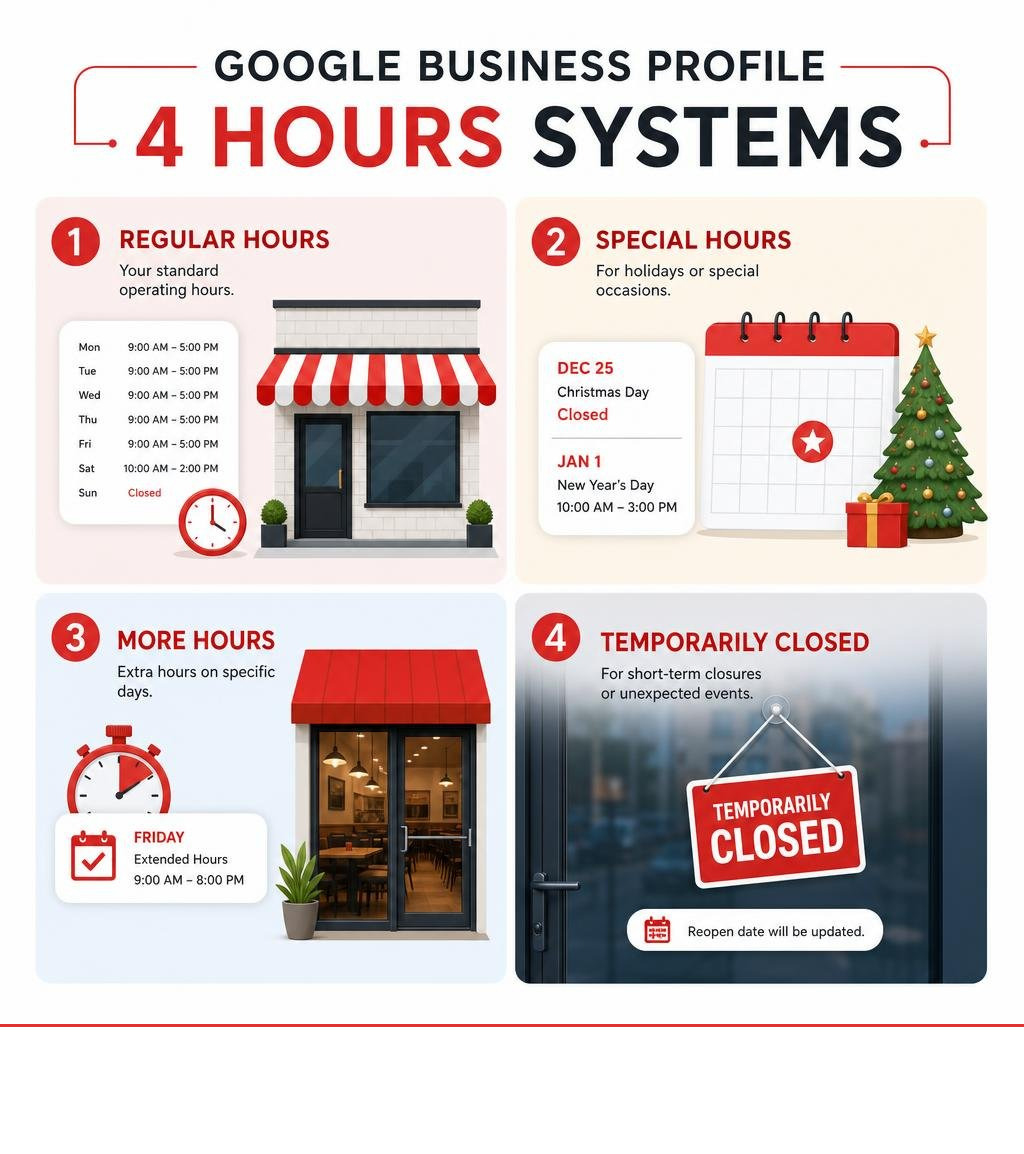
What most business owners don’t realize is that Google Business hours aren’t just one simple field. There are actually four separate systems — regular hours, special hours, more hours, and temporarily closed — and most businesses only use one of them.
I’m Rob Dietz, founder of the Dietz Group and a digital marketing consultant with over 18 years of experience helping small businesses get found online. Managing Google Business hours across dozens of client profiles has shown me how a few small settings can have a big impact on local search visibility and foot traffic. In this guide, I’ll walk you through every system, step by step.
Google business hours word guide:
Understanding the Four Google Business Hours Systems
When customers search for your business on Google Maps or Google Search, they expect to see accurate, real-time operating hours. To make this happen, Google doesn’t rely on just one simple schedule. Instead, it uses four distinct, overlapping systems to paint a complete picture of when you are available.
Understanding how these systems interact is critical to maintaining a trustworthy online presence. If you only set your standard Monday-to-Friday schedule and ignore the rest, you are leaving your customer experience—and your local search rankings—to chance.
| Hours System | What It Is | Best Used For | Impact on Search Visibility |
|---|---|---|---|
| Regular Hours | Your standard, repeating weekly schedule. | Normal, day-to-day operations. | Forms the baseline for “Open Now” filtering in search results. |
| Special Hours | Date-specific overrides that temporarily replace regular hours. | Holidays, staff training days, or short-term closures (under 7 days). | Signals active profile management to Google; prevents “hours may differ” warnings. |
| More Hours | Service-specific schedules layered on top of regular hours. | Delivery, takeout, drive-through, or senior-specific hours. | Expands reach for niche, high-intent transactional searches. |
| Temporarily Closed | A profile-level status indicating the business is shut down long-term. | Seasonal business pauses, renovations, or closures lasting 7+ days. | Maintains your ranking for direct brand searches but lowers visibility for broad queries. |
Using these systems correctly ensures your business remains highly visible while protecting your brand’s reputation. To make sure the rest of your profile is firing on all cylinders, take a look at Your Essential Google Business Profile Optimization Checklist.
Regular Hours vs. Special Hours
Your regular hours represent your standard operating schedule. They repeat week after week, providing a reliable baseline for your customers. However, life and business are rarely that static. Holidays, local events, and unexpected emergencies require flexibility. That is where special hours come in.
Special hours act as a complete override of your regular schedule for specific calendar dates. When you configure special hours, they apply only to the dates you select, leaving your standard weekly schedule completely untouched.
Using special hours is a massive win for the customer experience. If a major holiday is coming up and you fail to set special hours, Google may display a warning on your profile saying, “Holiday hours may differ.” This creates doubt in the minds of searchers, often driving them straight into the arms of a competitor who has explicitly confirmed they are open.
Keeping these updated protects your local brand reputation. For a deeper dive into adjusting these times, refer to the official guide on how to Edit your business hours – Google Business Profile Help.
More Hours and Temporarily Closed Status
For businesses that offer multiple types of services or operate on a seasonal basis, regular and special hours aren’t quite enough. Google introduced the “More hours” and “Temporarily closed” features to handle these complex operational scenarios.
“More hours” allows you to specify distinct times for specific services you offer. For example, a business might be open for walk-in traffic from 9 AM to 5 PM, but offer phone support or pickup options until 8 PM. By setting “More hours,” you can display these service-specific times directly on your profile.
On the other end of the spectrum is the “Temporarily closed” status. This is designed for closures that last seven consecutive days or longer—such as seasonal businesses closing for the winter, or a storefront shutting down temporarily for major renovations.
Using “Temporarily closed” is highly preferred over deleting your hours or marking yourself as permanently closed. It preserves your reviews, photos, and overall profile authority. If your profile is showing signs of neglect or inaccurate scheduling, it might be time to read our guide: Is Your Google Business Profile Slacking? Here Is How to Audit It.
How to Set and Edit Your Google Business Hours
Updating your google business hours is a straightforward process, but you must know where to look. Google has moved away from older standalone dashboards, allowing business owners to manage their profiles directly from Google Search or the Google Maps mobile app.
To get started, you must be logged into the Google Account that holds ownership or manager rights to your profile. If you have not yet claimed or set up your profile, you will want to follow The Ultimate Guide to Google Business Profile Setup before attempting to adjust your schedule.
Step-by-Step Guide to Updating Regular Hours
To update your standard weekly schedule, follow these simple steps:
- Find Your Profile: Go to Google Search and type in your exact business name, or search for “my business.” On the Google Maps app, tap your profile icon at the bottom right and select your business.
- Access the Editor: Click on the Edit profile button at the top of your merchant panel.
- Navigate to Hours: Select Business information, then scroll down and click on the Hours tab.
- Edit Main Hours: Click the pencil icon next to “Hours.” Under the “Open with main hours” option, you will see a list of the days of the week.
- Set Your Schedule: Toggle each day “Open” or “Closed.” For open days, enter your precise “Opens at” and “Closes at” times.
- Save: Scroll to the bottom of the window and click Save.
Your changes will typically go live within a few minutes, though Google occasionally reviews edits, which can take up to 24 hours. For official troubleshooting and alternative methods, see the Google documentation on how to Edit your business hours – Google Business Profile Help.
Managing Mid-Day Breaks and 24-Hour Operations
Not every business runs on a continuous 9-to-5 schedule. Many local businesses close for mid-day breaks, operate split shifts, or remain open 24 hours a day. Google’s interface handles these variations easily if you know the correct formatting.
To set a mid-day break (such as being open from 8 AM to 12 PM, closing for lunch, and reopening from 1 PM to 5 PM):
- Turn on the toggle for the specific day.
- Set your first open and close times (e.g., 8:00 AM and 12:00 PM).
- Click the Add hours button (+ icon) next to that day. This will generate a second row of time fields.
- Enter your afternoon hours in the second row (e.g., 1:00 PM and 5:00 PM).
If your business operates continuously, do not manually enter “12:00 AM to 12:00 AM” or “00:00 to 23:59.” Doing so can confuse Google’s automated routing systems. Instead, click the dropdown menu for the day’s opening time and select the official 24 hours flag. This tells both Search and Maps that your doors are unlocked around the clock.
Managing Special Hours and Holiday Schedules
Failing to update your holiday hours is one of the quickest ways to earn negative customer reviews. When holidays roll around, search traffic spikes as consumers actively look for open businesses.
If your profile doesn’t explicitly state whether you are open or closed on a public holiday, Google will display a generic warning to users. By proactively setting special hours, you remove all doubt and signal to Google’s algorithm that your profile is actively managed.
To set these temporary schedules, go to your profile editor, select Hours, and click on Special hours. You can then select specific upcoming dates and designate whether you are closed or operating under modified hours. For a complete walkthrough of this feature, refer to How to set Special hours – Google Business Profile Help.
When to Use Special Google Business Hours
Special hours are designed strictly for short-term schedule changes. Google’s interface caps special hours at six consecutive days. If you are going to be closed or operating under modified hours for seven or more days in a row, you should use the “Temporarily closed” status instead.
Common scenarios for special hours include:
- National holidays (e.g., Thanksgiving, Christmas, New Year’s Day).
- One-time staff training days or team-building retreats.
- Emergency closures due to severe weather or maintenance issues.
- Short-term extended hours for local community festivals or sales events.
Even if your hours on a holiday are exactly the same as your regular hours, you should still log in and confirm them. This changes the status on your public profile from a vague “Hours may differ” warning to a green, high-confidence confirmation that says “Holiday hours confirmed by business.”
This small detail drastically improves user trust and click-through rates. For more ways to optimize your profile’s overall performance, check out our 3 Tips to Optimize Your Google Business Profile.
Setting Up Holiday and Event Overrides
For businesses managing multiple locations, updating holiday hours one by one is incredibly tedious. Google allows you to manage these overrides in bulk using spreadsheet uploads.
When formatting special hours in a bulk spreadsheet, you must use a specific syntax. Each date-specific entry must be formatted as
YYYY-MM-DD: HH:MM-HH:MM
. For example, if you are open from 9:00 AM to 4:00 PM on Christmas Eve, your cell entry would look like:
2026-12-24: 09:00-16:00
. If you are completely closed, you would format it as
2026-12-25: x
.
Another common issue occurs when special hours extend past midnight. If your business is open from 8:00 PM on a holiday until 2:00 AM the following morning, you cannot enter this as a single time block because Google’s system limits single-day entries to a maximum of 24 hours.
Instead, you must split the entry across two calendar days:
- Day 1 (Holiday):
20:00-00:00 - Day 2 (Day after):
00:00-02:00
This formatting ensures that Google Maps displays your late-night operations accurately without throwing system errors.
Leveraging ‘More Hours’ for Service-Specific Times
The “More hours” feature is one of the most underutilized assets on Google Business Profile. It allows you to showcase service-specific schedules directly beneath your main hours.
This is incredibly useful for businesses that offer specialized services that do not align perfectly with their general lobby hours. Depending on your business category, Google may provide options to set “More hours” for:
- Delivery
- Takeout
- Drive-through
- Pickup
- Senior hours
- Happy hours
To configure these, navigate to your profile’s hours settings and look for the “Add more hours” section. For a step-by-step technical guide, view How to set More hours – Computer – Google Business Profile Help.
Configuring Subsets of Your Main Google Business Hours
There is one critical rule you must remember when setting up “More hours”: They must exist as a subset of your regular business hours.
If your main business hours are set from 9:00 AM to 5:00 PM, you cannot set your delivery hours from 5:00 PM to 9:00 PM. If you attempt to do this, Google’s system will either reject the edit, flag your profile for review, or simply refuse to display the “More hours” on your public listing.
Your regular hours must cover the entire span of your operations. If your physical lobby closes at 5:00 PM but you continue to fulfill deliveries until 9:00 PM, your regular hours must be set from 9:00 AM to 9:00 PM. You can then use “More hours” to specify that your lobby/walk-in hours are 9:00 AM to 5:00 PM, and your delivery hours run the full length of the day.
Aligning these schedules correctly ensures your profile remains fully functional and highly visible. To learn more about maximizing your profile’s features, read our guide on How to Supercharge Your Google Business Profile and Win Local Search.
Guidelines for Service-Area and Appointment-Only Businesses
If your business operates without a physical storefront—such as a plumber, electrician, or mobile pet groomer—handling business hours can feel a bit tricky. The same applies to professional services that operate strictly by appointment.
For Service-Area Businesses (SABs) that do not show a physical address on Google Maps, your hours should represent the times when you are actively answering the phone and available to dispatch services. Do not set your hours to 24/7 unless you genuinely have a live representative ready to answer emergency calls at 3:00 AM. Unanswered calls lead to poor user experiences and negative reviews.
If you run an appointment-only business, you should still list your standard hours of availability. This tells searchers when they can expect to book an appointment. You can also use your business description and custom attributes to clarify that walk-ins are not accepted and that bookings must be made in advance.
The Impact of Business Hours on Local SEO and AI Search
Many business owners view their hours purely as an operational detail. In reality, your operating hours are a massive local ranking factor—especially for high-intent mobile searches.
When a user searches for a service followed by “near me” or “open now,” Google’s algorithm heavily prioritizes businesses that are currently open. If your competitor is normally ranked higher than you, but they are currently closed and you are open, Google will often boost your visibility to satisfy the user’s immediate intent.
This behavioral shift makes accuracy incredibly important. If you want to dive deeper into capturing these high-intent local leads, check out our Ultimate Guide to Local SEO for Near Me Searches.
Generative Engine Optimization (GEO) and AI Answers
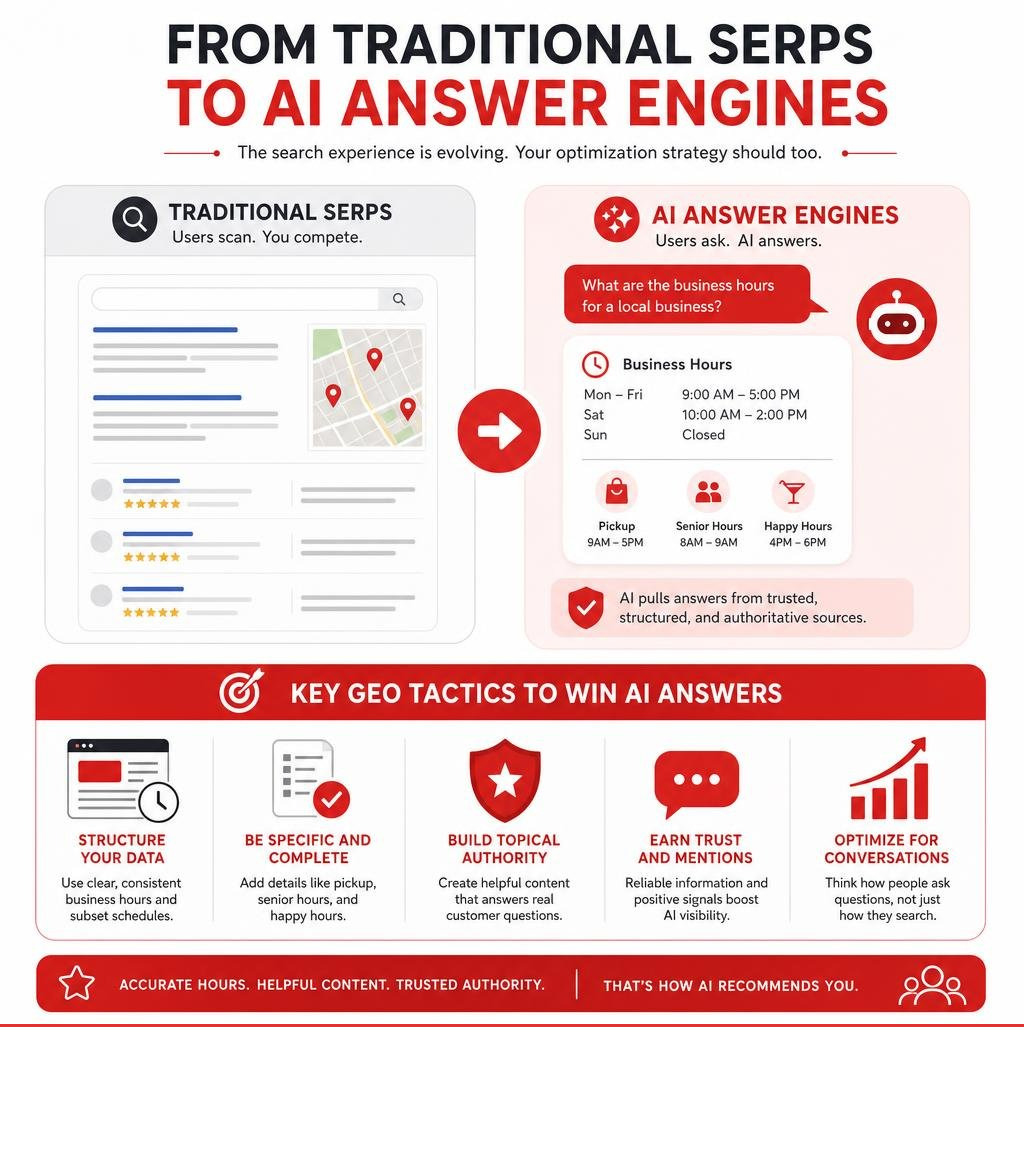
As search behavior evolves, we are seeing a massive shift toward AI-driven search engines and conversational answers. This shift has introduced a new marketing discipline: Generative Engine Optimization (GEO).
Traditional search engines return a list of links. AI search engines, however, synthesize data from across the web to provide a direct, conversational answer. If a user asks an AI assistant, “Where can I get a quick oil change nearby that is open past 6 PM?” the AI will scan Google Business Profiles to find listings with verified hours matching that specific query.
To win in this new AI-driven landscape, your data must be structured, consistent, and highly accurate. If your hours are vague or unconfirmed, AI engines will filter your business out of their recommendations to avoid giving the user incorrect information. Keeping your hours updated is no longer just about Google Maps; it is about feeding the AI engines the structured data they need to recommend your business.
SEO vs PPC and the Shift to AI
Local digital marketing has long been divided into Search Engine Optimization (SEO) and Pay-Per-Click (PPC) advertising. While PPC can drive immediate traffic, organic search visibility remains the most sustainable, high-ROI strategy for long-term growth.
With the rise of AI search, the line between these channels is shifting. AI engines prioritize highly credible, organic data sources to build trust with their users. While paid ads still have their place, organic optimization—starting with foundational elements like your Google Business Profile—is critical for capturing high-intent searches.
At Dietz Group, we focus on building robust, long-term organic authority. A successful, comprehensive local SEO campaign typically takes 12 to 18 months to achieve dominant, lasting results. This timeline allows us to build deep local relevance, optimize your profiles, and establish your business as the undisputed authority in your market.
Frequently Asked Questions About Google Business Hours
Navigating the various settings of your Google Business Profile can occasionally lead to confusion. Below are some of the most common questions business owners ask regarding their hours of operation.
How long can special hours last?
Special hours are strictly capped at six consecutive days. Google’s system is designed this way to prevent businesses from using special hours for long-term operational changes.
If your business is going to be closed or operating under modified hours for seven or more consecutive days, you must use the Temporarily closed status. Once your business is ready to reopen, you can simply log back into your profile, mark the business as active, and verify that your regular hours are correct.
Why aren’t my ‘More hours’ showing up on my profile?
If you have configured “More hours” but they are not visible on your public Google listing, it is usually due to one of two reasons:
- Missing Regular Hours: “More hours” function as a subset of your regular schedule. If you have not set your main regular hours first, your “More hours” will not display.
- Outside Main Hours: Your “More hours” must fall entirely within the window of your main business hours. If your main hours are 9:00 AM to 5:00 PM, and you set delivery hours from 5:00 PM to 8:00 PM, the system will not display them because they extend past your main closing time.
How do I prevent unauthorized changes to my business hours?
One of the most frustrating experiences for a business owner is finding that their hours have been changed without their consent. This happens because Google allows everyday users to “suggest an edit” to listings. Additionally, Google’s automated systems constantly scan third-party directories and your website; if they find conflicting information, they may automatically update your profile.
To prevent and fix unauthorized changes:
- Enable Notifications: Ensure you have email and mobile notifications turned on for your Google Business Profile so you are instantly alerted to any suggested changes.
- Lock Your Profile: Regularly log into your dashboard to reject pending user suggestions.
- Ensure Web Consistency: Make sure the hours listed on your website and other local directories match your Google Business hours exactly. When Google’s scrapers find consistent data across the web, they are far less likely to accept random user edits.
Conclusion
Your google business hours are much more than a simple schedule on a screen. They are a direct line of communication with your customers, a critical signal for Google’s local search algorithm, and a foundational data point for the future of AI-driven search.
Keeping your hours, special holiday schedules, and service-specific times updated is a simple yet powerful way to protect your brand’s reputation and win high-intent local customers.
However, managing a complete local search presence involves far more than just updating your hours. It requires a dedicated, ongoing strategy. At Dietz Group, we have over 18 years of digital marketing expertise. We leverage advanced strategies to help businesses dominate local search results, navigate the shift to AI answers, and generate high-quality leads.
A highly successful, comprehensive local SEO campaign is a long-term investment that typically takes 12 to 18 months to deliver peak, sustainable ROI. Let us handle the heavy lifting of managing your local presence while you focus on running your business.
Ready to dominate your local market? Contact us today to learn more about our Google Business Profile Management Services and let’s build a strategy that wins.